MCP — Model Context Protocol
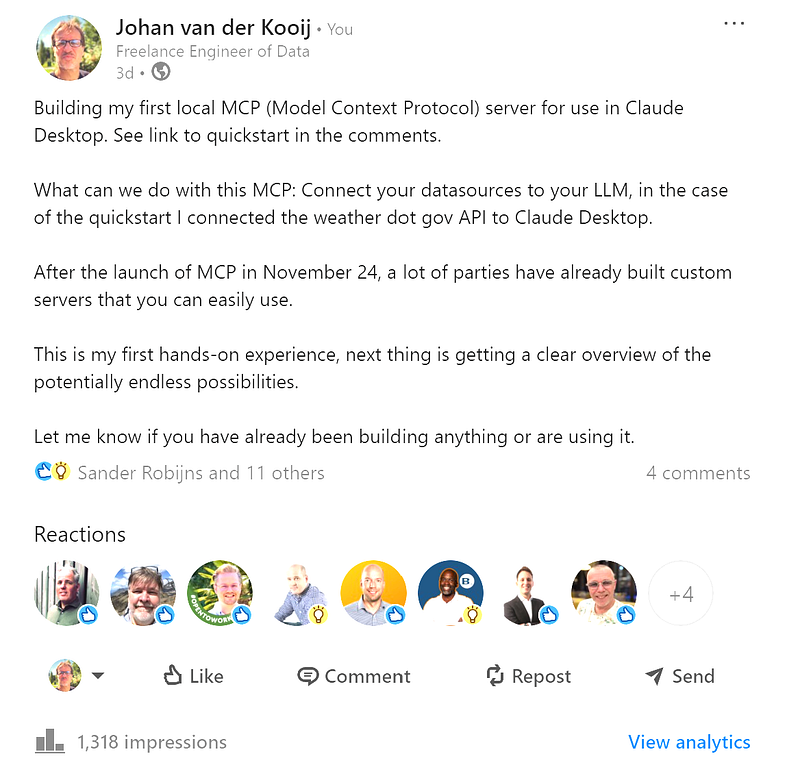
Shared my first MCP experience on LI this week:
Non-paywall link
Shared my first MCP experience on LI this week:
How does this look under the hood:
First, you build your stuff in a python script (from the quickstart):
from typing import Any
import httpx
from mcp.server.fastmcp import FastMCP

# Initialize FastMCP server
mcp = FastMCP("weather")

# Constants
NWS_API_BASE = "https://api.weather.gov"
USER_AGENT = "weather-app/1.0"

async def make_nws_request(url: str) -> dict[str, Any] | None:
    """Make a request to the NWS API with proper error handling."""
    headers = {
        "User-Agent": USER_AGENT,
        "Accept": "application/geo+json"
    }
    async with httpx.AsyncClient() as client:
        try:
            response = await client.get(url, headers=headers, timeout=30.0)
            response.raise_for_status()
            return response.json()
        except Exception:
            return None

def format_alert(feature: dict) -> str:
    """Format an alert feature into a readable string."""
    props = feature["properties"]
    return f"""
Event: {props.get('event', 'Unknown')}
Area: {props.get('areaDesc', 'Unknown')}
Severity: {props.get('severity', 'Unknown')}
Description: {props.get('description', 'No description available')}
Instructions: {props.get('instruction', 'No specific instructions provided')}
"""

@mcp.tool()
async def get_alerts(state: str) -> str:
    """Get weather alerts for a US state.

    Args:
        state: Two-letter US state code (e.g. CA, NY)
    """
    url = f"{NWS_API_BASE}/alerts/active/area/{state}"
    data = await make_nws_request(url)

    if not data or "features" not in data:
        return "Unable to fetch alerts or no alerts found."

    if not data["features"]:
        return "No active alerts for this state."

    alerts = [format_alert(feature) for feature in data["features"]]
    return "\n---\n".join(alerts)

@mcp.tool()
async def get_forecast(latitude: float, longitude: float) -> str:
    """Get weather forecast for a location.

    Args:
        latitude: Latitude of the location
        longitude: Longitude of the location
    """
    # First get the forecast grid endpoint
    points_url = f"{NWS_API_BASE}/points/{latitude},{longitude}"
    points_data = await make_nws_request(points_url)

    if not points_data:
        return "Unable to fetch forecast data for this location."

    # Get the forecast URL from the points response
    forecast_url = points_data["properties"]["forecast"]
    forecast_data = await make_nws_request(forecast_url)

    if not forecast_data:
        return "Unable to fetch detailed forecast."

    # Format the periods into a readable forecast
    periods = forecast_data["properties"]["periods"]
    forecasts = []
    for period in periods[:5]:  # Only show next 5 periods
        forecast = f"""
{period['name']}:
Temperature: {period['temperature']}°{period['temperatureUnit']}
Wind: {period['windSpeed']} {period['windDirection']}
Forecast: {period['detailedForecast']}
"""
        forecasts.append(forecast)

    return "\n---\n".join(forecasts)

if __name__ == "__main__":
    # Initialize and run the server
    mcp.run(transport='stdio')
Next, register your script in the claude_desktop_config.json file:
{
    "mcpServers": {
        "weather": {
            "command": "c:\\users\\johan\\.local\\bin\\uv.exe",
            "args": [
                "--directory",
                "C:\\users\\johan\\downloads",
                "run",
                "weather.py"
            ]
        }
    }
}
You will find the app you registered under File, Settings, Developer:
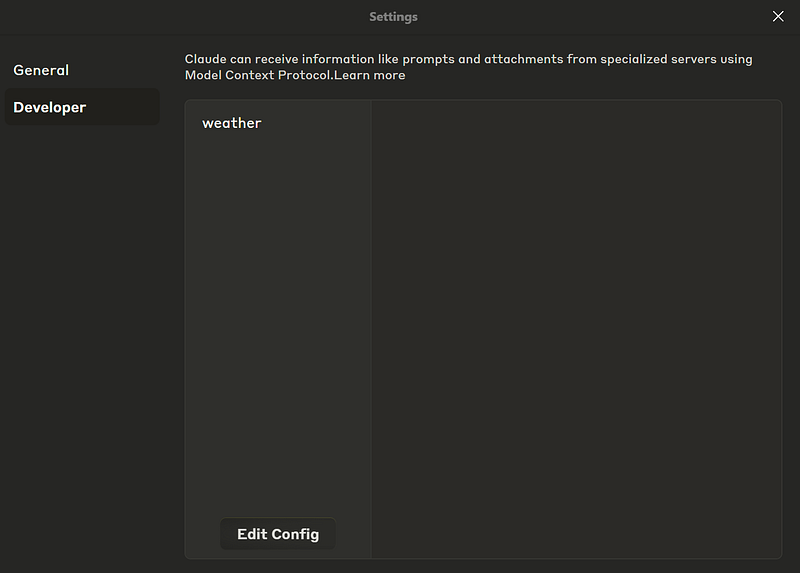
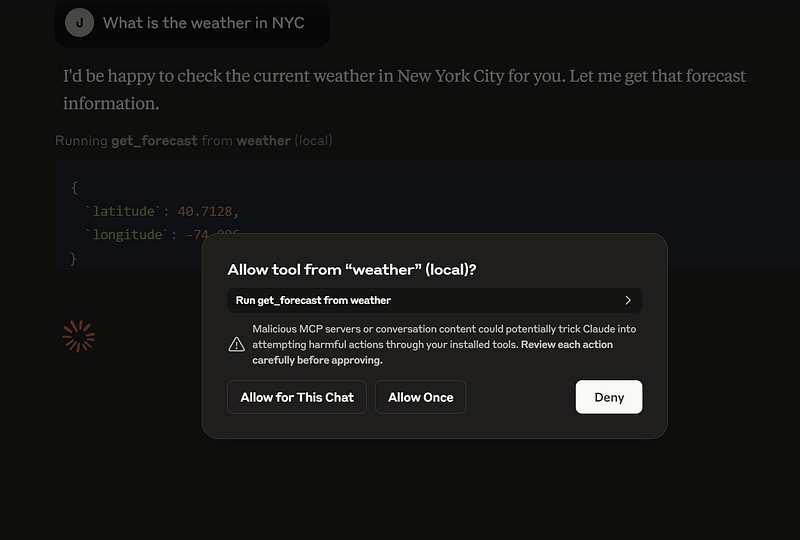
When starting Claude desktop, the newly added application is called with the prompt ‘what is the weather in NYC’. We need to authorize this:
You see the mention of the app here:
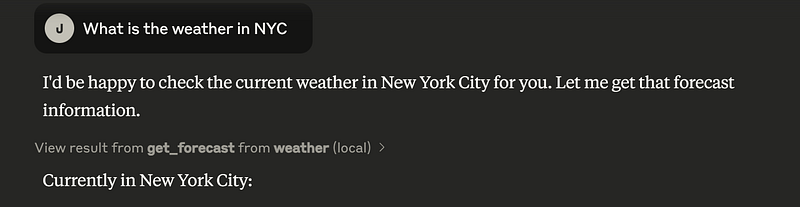
A small remark here: Before deploying the app to Claude, first do a unit test within Python. Debugging via Claude is not very easy.
So, let’s take this a step further: We will add a Snowflake datasource. We will need to do a little bit of rethinking, compared to a perhaps ‘regular’ Python script where we execute a query and put the result in a dataframe. Like the weather script above, the same will go for the Snowflake script: the MCP app basically is like a little server that waits until a prompt from Claude (Desktop in this case) needs to be passed on. Query is executed and result is returned to Claude. This leads to this script for Snowflake:
import json
from mcp.server.fastmcp import FastMCP
import snowflake.connector

# Load Snowflake credentials from JSON config file
with open('sfconfig.json', 'r') as file:
    data = json.load(file)
    user = data['user']
    password = data['password']
    account = data['account']

# Establish connection to Snowflake
con = snowflake.connector.connect(
    user=user,
    password=password,
    account=account
)

# Initialize MCP server with a name
mcp = FastMCP("snowflake")

@mcp.tool()
def fetch_data(query: str) -> dict:
    """Execute a Snowflake query based on user request."""
    try:
        cursor = con.cursor()
        cursor.execute(query)
        result = cursor.fetchall()
        return {"data": result}
    except Exception as e:
        return {"error": str(e)}

if __name__ == "__main__":
    mcp.run(transport="stdio")
The sfconfig.json is structured like this:
{
  "account":"the part without the snow...com",
  "user":"username",
  "password":"password",
  "warehouse": "optional",
  "database": "optional",
  "schema": "optional"
}
Then, register the app with the weather app:
{
    "mcpServers": {
        "weather": {
            "command": "c:\\users\\johan\\.local\\bin\\uv.exe",
            "args": [
                "--directory",
                "C:\\users\\johan\\downloads",
                "run",
                "weather.py"
            ]
        },
        "snowflake": {
            "command": "c:\\users\\johan\\.local\\bin\\uv.exe",
            "args": [
                "--directory",
                "C:\\users\\johan\\downloads\\git\\sf_drivers",
                "run",
                "sf_query_mcp.py"
            ]
        }
    }
}
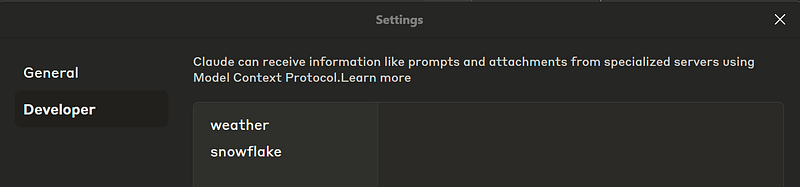
In Claude desktop, we will now see 2 apps:
Let’s give it a try. But first, a little look at our role setup in Snowflake. Because what you will see is that if you have the Snowflake Sample Data in your active role, the results might be a bit unpredictable. So I removed the Sample Data from my role and only had this database available for my role:
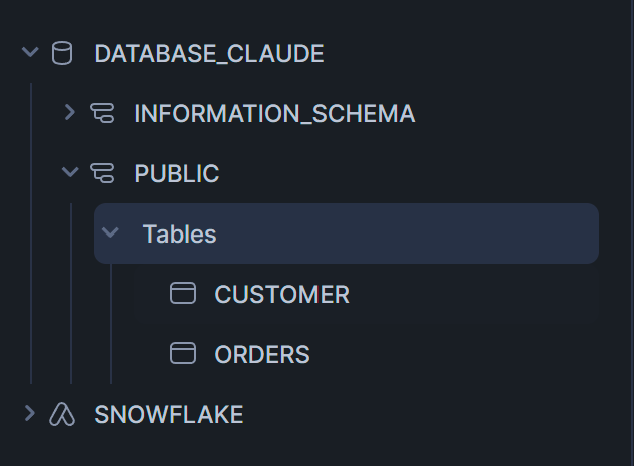
Both tables I created from one of the sample datasets.
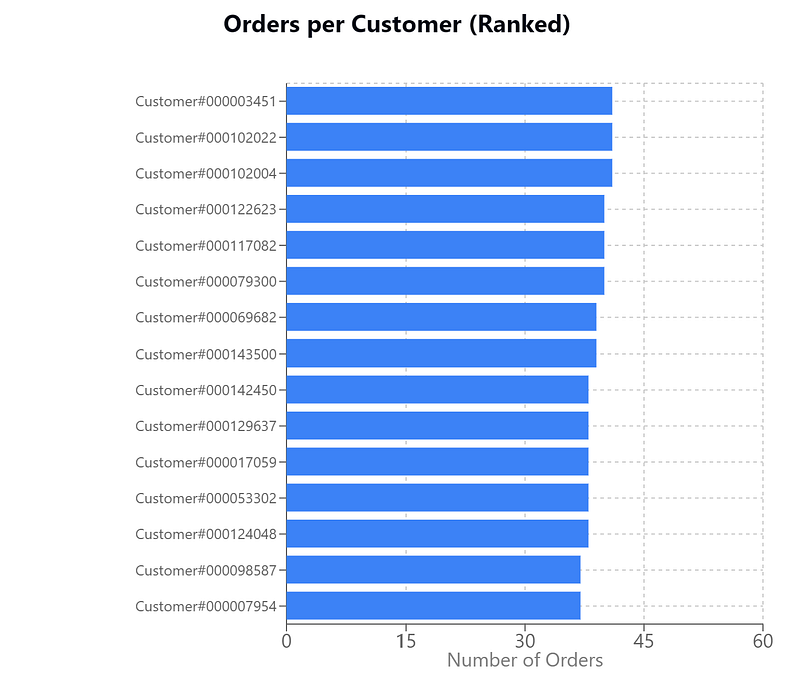
Prompt 1: “Can you show me the number of orders per customer, ranked by number of orders, in a horizontal bar chart with the name of the customer in it”
The first result is actually pretty ‘weird’ since the Snowflake app is not used, so Claude is just making stuff up. Typical AI hallucination ?

So we probably need to be more specific in our prompt:
Prompt 2: “from snowflake: Can you show me the number of orders per customer, ranked by number of orders, in a horizontal bar chart with the name of the customer in it”
This looks more like it, we are prompted for the app to be used:
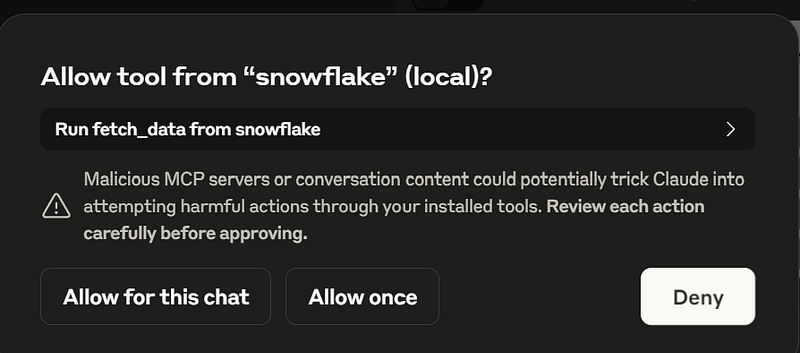
Claude starts figuring out what is available in Snowflake:

The result:
Pretty cool, not ?
Now let’s try to combine the two apps: weather & snowflake by entering this prompt: “for the customers living in denver or new york can you add the temperature as a legend in the bar chart”.
Claude understands we also need the other app:
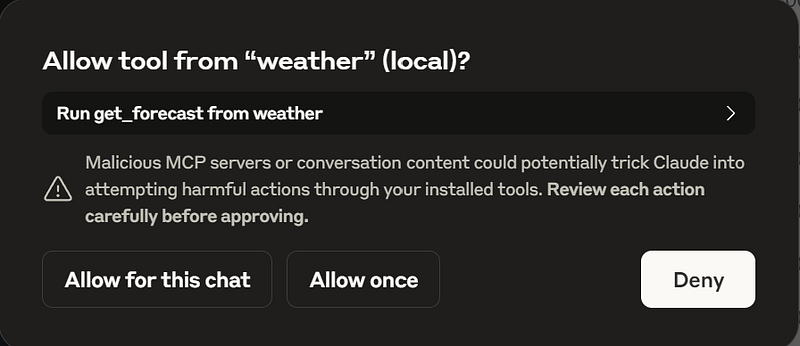
The result, although ugly :), Claude does listen to us:
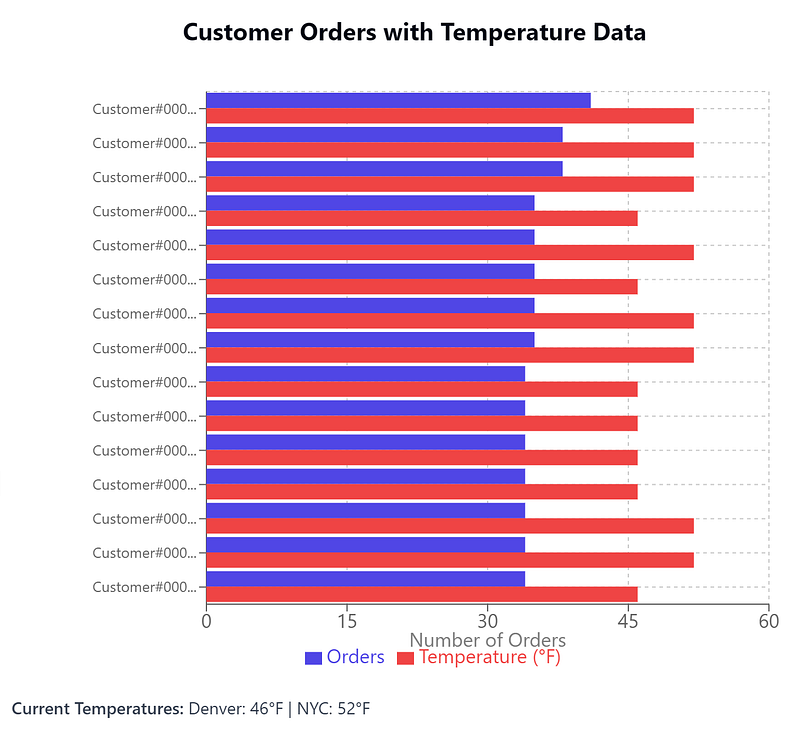
So, some observations:
- setting this up in Claude desktop is pretty easy, it actually works with minimal debugging and minimal help of AI code generation
- you will run out of free prompts pretty quick, so a paid subscription will be required
- the exact way this functions, the pro and cons, need some further investigation
- we need to investigate what happens with our data
But, it is a very prompising start to my use of MCP adventures, will certainly go more in-depth.
The quickstart: https://modelcontextprotocol.io/quickstart/server
About MCP: https://modelcontextprotocol.io/introduction